How To Connect A Ceiling Fan To Alexa Easily

How To Connect A Ceiling Fan To Alexa sounds simple at first, yet plenty of setups turn into a frustrating mess halfway through. One minute the fan responds perfectly, then suddenly Alexa can’t find the device, the speeds stop syncing, or the smart switch refuses to pair. That back-and-forth annoyance pushes many people to give up too early. A smoother setup starts with understanding how the fan, WiFi network, smart switch, and Alexa ecosystem actually work together behind the scenes.
Smart ceiling fan control isn’t only about convenience. It changes how everyday comfort feels inside a busy home. Instead of fumbling for remotes or wall chains, voice commands create a faster and cleaner routine. Saying “Alexa, turn on the fan” while carrying groceries or lying in bed feels oddly satisfying, honestly. Small upgrades like this remove tiny daily irritations that add up over time.
Compatibility causes the biggest headaches in many installations. Some ceiling fans already include smart receivers, while others rely on separate WiFi controllers or smart wall switches. That difference matters more than most people expect. A standard fan paired with the wrong switch can create flickering lights, delayed commands, or speed control issues that make the whole setup feel clunky instead of seamless.
WiFi stability also plays a huge role in keeping voice commands responsive. Weak signals near the ceiling fan location often trigger random disconnections or delayed responses from Alexa. Plenty of people blame the fan itself when the real culprit is poor router placement or overcrowded wireless channels. A stronger signal usually creates a noticeably smoother experience with faster reactions and fewer connection drops.
Another common issue comes from mixing too many apps together. Some setups require separate manufacturer apps before Alexa integration even begins. That extra layer confuses plenty of homeowners because device naming, room grouping, and permissions don’t always sync correctly. Keeping the setup clean and organized prevents Alexa from responding with those irritating “device is unresponsive” messages.
Voice automation becomes far more useful once routines enter the picture. Fans can automatically turn on during hot afternoons, shut off overnight, or activate alongside smart lights and thermostats. Those little automations create a home environment that feels effortless instead of constantly manual. Honestly, once routines are dialed in properly, going back to pull chains feels ancient.
Safety matters too, especially during installation. Smart fan switches often require neutral wires, proper breaker shutdown, and careful wiring alignment. Skipping those basics can create unstable performance or electrical problems nobody wants to deal with later. A careful setup prevents endless troubleshooting sessions and helps the entire smart home system stay reliable long after installation day.
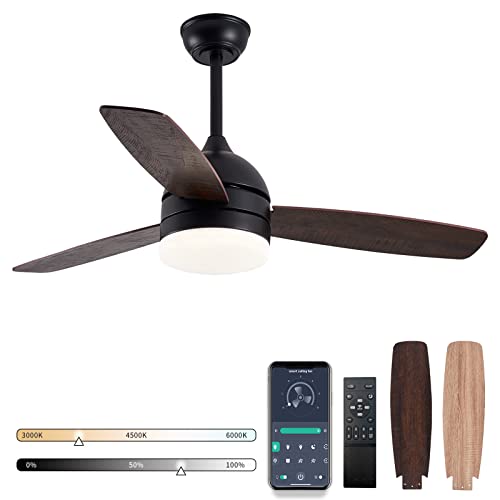
- LFR Score8.8
LFR Score is a ranking system developed by lightfansreviews.com. LFR Score has no relationship or impact from any manufacturers or sales agent websites. Learn more
- BrandTREATLIFE
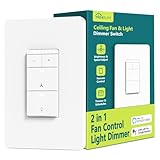
- LFR Score8.6
LFR Score is a ranking system developed by lightfansreviews.com. LFR Score has no relationship or impact from any manufacturers or sales agent websites. Learn more
- BrandTREATLIFE

- LFR Score8.4
LFR Score is a ranking system developed by lightfansreviews.com. LFR Score has no relationship or impact from any manufacturers or sales agent websites. Learn more
- BrandAubric

- LFR Score8.0
LFR Score is a ranking system developed by lightfansreviews.com. LFR Score has no relationship or impact from any manufacturers or sales agent websites. Learn more
- BrandHumpptom
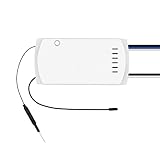
- LFR Score8.0
LFR Score is a ranking system developed by lightfansreviews.com. LFR Score has no relationship or impact from any manufacturers or sales agent websites. Learn more
- BrandSONOFF

- LFR Score8.0
LFR Score is a ranking system developed by lightfansreviews.com. LFR Score has no relationship or impact from any manufacturers or sales agent websites. Learn more
- BrandPrichor

- LFR Score8.0
LFR Score is a ranking system developed by lightfansreviews.com. LFR Score has no relationship or impact from any manufacturers or sales agent websites. Learn more
- BrandCOREBAY

- LFR Score7.0
LFR Score is a ranking system developed by lightfansreviews.com. LFR Score has no relationship or impact from any manufacturers or sales agent websites. Learn more
- BrandUBORSY
Last update on 2026-08-02 / Affiliate links / Images, Product Titles, and Product Highlights from Amazon Product Advertising API
How To Connect A Ceiling Fan To Alexa Without Hassle
A bedroom feels stuffy, the remote is missing again, and the wall switch sits across the room like it’s mocking you. That tiny daily annoyance is exactly why how to connect a ceiling fan to alexa has become such a practical upgrade instead of a flashy smart-home trick. A good setup gives you voice control, cleaner routines, and fewer “where’s the remote?” moments. The catch is simple: the fan, switch, receiver, WiFi, and Alexa app all need to speak the same language.
Start With Fan Compatibility
The first headache usually starts before anyone touches a wire. Some ceiling fans already have a built-in smart receiver, while older models may only respond to pull chains, wall switches, or handheld remotes. That difference matters because Alexa can’t control a standard motor by magic. The fan needs either a compatible smart module, a smart fan switch, or a WiFi fan controller that can link with Alexa.
A regular light switch often creates confusion because it controls power, not fan speed logic. Flip it off, and the smart receiver loses power completely. Flip it on, and Alexa may need a moment to see the fan again. Keeping constant power to the fan receiver is usually the cleaner path for stable voice control.
Fan lights add another layer. A ceiling fan with a light kit may need separate control for the fan motor and light circuit, especially if you want Alexa to dim lights without changing fan speed. Some smart controllers support both functions, while cheaper ones handle only on and off. That small spec detail can save a whole afternoon of head-scratching.
Older homes can make the job trickier because some wall boxes don’t have a neutral wire. Many smart fan switches require a neutral connection to stay powered while the fan is off. No neutral wire doesn’t automatically kill the project, but it does narrow your options. A battery-powered remote bridge or canopy receiver may make more sense in that situation.
Light bulbs can also muddy the setup if the fan has a built-in fixture. To keep the lighting side simple, compare the bulb type first and match it with the fan’s rated socket. For bulb basics before pairing smart controls, review filament light bulb options so the fan light doesn’t flicker, overheat, or fight the smart switch.
Choose The Right Alexa Control Method
The cleanest method depends on how the fan is wired today. A smart ceiling fan with built-in WiFi usually pairs through its brand app first, then links to Alexa through a skill. That route feels simple because the motor control, speed settings, and light functions already live inside the fan’s own system. The downside is brand app dependency, which can feel annoying if the app is slow or poorly organized.
A smart fan switch works better for many hardwired fans. It replaces the wall control and gives Alexa access to fan speed, on and off commands, and sometimes light control. This setup feels more permanent and tidy, but it requires safe wiring inside the switch box. If the wiring looks confusing, calling an electrician is cheaper than fixing a burned switch or damaged fan receiver later.
A WiFi fan controller hides inside the canopy above the fan. That option often suits fans controlled by a remote because it keeps the wall plate unchanged while adding Alexa support. The controller sits between house wiring and the fan leads, then sends commands to the motor and light. It’s neat, but canopy space can get tight fast, especially with older fans and bulky receivers.
Some people try using a basic smart plug, but that only works for plug-in fans, not hardwired ceiling fans. Cutting power to a ceiling fan with a simple smart switch can also reset the receiver or disable speed memory. That’s why fan-rated smart controls matter. A ceiling fan motor behaves differently from a lamp, and the controller needs to handle that load properly.
Voice commands feel better when device names stay short and obvious. “Bedroom fan” works better than “Tuya Smart Fan Switch 2” or “Ceiling Fan Controller Main Unit.” Alexa responds more reliably to clean names because there’s less room for confusion. A little naming discipline saves a lot of repeated shouting across the room.
Set Up The Fan Before Opening Alexa
The manufacturer app usually comes first, even though everyone wants to jump straight into Alexa. Pair the fan, switch, or controller inside its native app and confirm every basic command works there. Turn the fan on, change speeds, test the light, and check whether the app shows the correct device status. If the device acts weird before Alexa sees it, Alexa won’t magically fix the problem.
WiFi setup deserves patience. Most smart fan controllers still prefer a 2.4 GHz WiFi network because it reaches farther and handles smart-home devices better through walls. A crowded network name, weak signal, or router placed far from the room can cause pairing failures. Moving the phone closer to the fan during setup can help, but the fan itself needs a steady signal after installation.
App permissions can also block pairing. Bluetooth, local network access, and location permissions may sound unrelated, but many smart-home apps use them during device discovery. Denying those permissions can leave the fan stuck in pairing mode. Annoying? Yep. Still, turning them on during setup often prevents the dreaded “device not found” loop.
Once the fan works in its own app, connect the brand skill in Alexa. Open the Alexa app, go to devices, add the skill, sign in, and allow Alexa to discover the fan. A successful connection should show the fan as a controllable device, not just a generic switch. That difference matters because a real fan device can often support speed control, while a generic switch may only turn power on and off.
Open floor plans bring a special challenge because one fan may affect several seating zones at once. Placement, blade size, and airflow direction matter more in wide rooms than in compact bedrooms. To plan the physical side before adding voice commands, explore ceiling fan for open floor plan ideas that fit larger shared spaces without creating uneven airflow.
Build Alexa Commands That Feel Natural
Basic commands should sound like something you’d actually say while half-asleep. “Alexa, turn on bedroom fan” beats a long, technical device name every single time. Clear room names make the whole setup feel less fussy. The goal is natural voice control, not a memory test.
Speed control depends on the device type and Alexa support. Some fans accept “set bedroom fan to medium,” while others use percentages like “set bedroom fan to 50 percent.” That can feel a little odd at first, but it works once the household learns the pattern. If speed commands fail, check whether the device appears as a fan or just a switch inside Alexa.
Routines make the setup shine. A morning routine can turn the fan on low, switch the light on, and start the coffee maker if the devices are connected. A bedtime routine can turn the fan to medium, dim the lights, and shut off other rooms. Automation turns the ceiling fan from a single appliance into part of the home’s daily rhythm.
Temperature-based routines can be useful, but they need the right extra gear. Alexa may need a compatible temperature sensor, smart thermostat, or Echo device with built-in sensing to trigger fan behavior. Without that sensor, the routine can’t know the room feels warm. A schedule is simpler, while temperature triggers feel smarter once the hardware supports them.
Bathroom fans follow a different logic because moisture control matters more than comfort. Timers help clear humidity after showers without leaving the fan running for half the day. For a separate ventilation setup, compare a bathroom ceiling fan timer switch so moisture control stays practical without mixing it up with Alexa ceiling fan commands.
Fix Pairing And Response Problems
Pairing failures usually come down to network mismatch, app permissions, or reset timing. Many smart controllers need the fan switched on and off in a specific pattern to enter pairing mode. Miss the timing, and nothing happens. That little reset dance feels silly, but it’s often the only way to make the controller visible again.
A fan that shows “device unresponsive” in Alexa may still work in the manufacturer app. That usually means the brand skill connection needs refreshing. Disable the skill, sign in again, and run device discovery one more time. It’s not glamorous, but account relinking fixes plenty of Alexa control problems.
Duplicate device names can cause strange behavior. Alexa may hear “living room fan” and pick the wrong device if a switch, light, and fan share similar names. Rename the motor and light separately, then place both inside the correct room group. Clean organization makes commands faster and keeps the app from turning into digital junk drawer chaos.
Delay after a command can point to weak WiFi or overloaded smart-home apps. A ceiling fan mounted far from the router may receive a spotty signal, especially through plaster, brick, or metal junction boxes. Mesh WiFi can help, but device placement still matters. A stable connection makes Alexa fan control feel instant instead of clumsy.
Some issues come from unrealistic expectations. Alexa can only control the functions exposed by the fan controller. If the device doesn’t support reverse direction, breeze mode, or light dimming through its app, Alexa probably won’t handle those commands either. The smartest move is matching the controller to the features you’ll actually use, not buying the cheapest device and hoping it behaves like a full smart fan system.
How To Use Alexa With Smart Ceiling Fan Controls
Nothing kills the smart-home vibe faster than yelling at Alexa three times while the ceiling fan ignores every command. The setup might technically work, yet daily use still feels clunky if the fan responds slowly, drops connection, or blasts high speed at midnight for no reason. That’s where how to use alexa with smart ceiling fan controls becomes more than basic pairing. A smoother experience depends on automation habits, cleaner organization, and realistic setup expectations.
Organize Devices Before The App Gets Messy
Most Alexa fan problems start with cluttered device lists. A fan named “Smart Life Device 47” quickly becomes impossible to remember once lights, plugs, and thermostats pile into the app. Clean names matter because voice recognition works better with simple phrasing. “Office fan” or “guest room fan” feels natural and avoids confusion during daily use.
Grouping devices by room also keeps commands smoother. Alexa reacts faster when the fan and light sit inside the same room profile instead of scattered across random categories. Saying “turn off the bedroom” can then shut down lights and fan controls together. That small adjustment makes the smart setup feel organized instead of chaotic.
People often forget that duplicate names create weird responses. A ceiling light and ceiling fan sharing similar labels can trigger the wrong device. Alexa may dim the light while leaving the fan spinning. Clear naming prevents those little annoyances from stacking up over time.
Device icons matter more than expected too. Marking the device specifically as a fan controller instead of a generic switch unlocks better Alexa functionality in many setups. Speed control, room routines, and voice actions usually behave more consistently after proper categorization. Tiny setup details often decide whether a smart home feels polished or frustrating.
Lighting comfort also affects how the room feels alongside fan automation. Bright glare near reading areas can make nighttime routines feel uncomfortable even if airflow is perfect. For softer evening lighting while using Alexa routines, explore lamp shade for reading ideas that reduce harsh overhead brightness.
Use Routines Instead Of Constant Voice Commands
Voice control sounds fun during the first week, but routines create the real convenience. Repeating the same command every night gets old fast. A scheduled Alexa routine can lower the fan speed automatically at bedtime, then shut it off in the morning without anyone saying a word. That’s where smart automation starts feeling genuinely useful.
Temperature changes during sleep can also make fixed settings annoying. Medium speed might feel perfect at 10 PM, then freezing at 3 AM. Layered routines solve that problem by reducing speed gradually overnight instead of blasting cold air nonstop. Small adjustments like that make a room feel noticeably more comfortable.
Morning routines help too, especially in warmer climates. Alexa can switch the fan on low speed before the room heats up, helping air circulate before sunlight raises indoor temperatures. A ceiling fan paired with scheduled airflow often reduces the urge to crank air conditioning immediately. That balance can help lower unnecessary energy use.
Movie nights, reading sessions, and quiet evenings benefit from scene-based routines as well. Alexa can dim lights, reduce fan speed, and mute distractions through a single command. Those combinations feel smoother than managing every device separately. A connected room should reduce friction, not create more steps.
Some fans produce noticeable humming sounds at certain speeds. Testing different routine settings helps avoid that irritating overnight drone that keeps light sleepers awake. Smart control feels better once the fan runs quietly and predictably instead of randomly switching into noisy high-speed cycles.
Improve WiFi Stability Around Ceiling Fans
WiFi problems hide behind a huge percentage of Alexa complaints. The fan itself often works perfectly, but the signal reaching the receiver struggles through ceilings, insulation, or thick walls. Ceiling-mounted devices naturally sit farther from routers than lamps or smart plugs. That distance matters more than many people realize.
A weak signal creates delayed responses, missed commands, or random disconnects. Alexa hears the request immediately, but the fan controller responds seconds later like it’s waking up from a nap. Stronger WiFi coverage makes the whole setup feel sharper and more dependable. Even basic router repositioning can improve performance dramatically.
Mesh WiFi systems help larger homes where one router can’t evenly cover every room. Still, placing a node directly near the fan may create interference if the signal overlaps too aggressively. Sometimes moving the router a few feet solves more issues than buying expensive hardware. Smart-home troubleshooting often comes down to simple adjustments.
Too many connected devices can also overload budget routers. Phones, TVs, cameras, speakers, and fan controllers all compete for attention on the same network. Older routers may struggle once dozens of devices connect simultaneously. A newer router with better device handling can stabilize the entire smart-home ecosystem.
Firmware updates matter too, even though nobody enjoys doing them. Outdated controller firmware can cause random Alexa disconnects or broken speed commands after app updates. Checking firmware every few months helps maintain stable fan performance. Ignoring updates for years usually ends with compatibility headaches later.
Handle Multi-Speed Fans More Smoothly
Ceiling fans behave differently from regular lights because speed control involves motor communication instead of simple power switching. A cheap smart switch may technically power the fan, yet completely fail at handling low, medium, and high speeds correctly. That mismatch often creates buzzing noises or inconsistent airflow. Using a fan-rated controller prevents those issues from becoming daily irritations.
Fans with pull-chain speed controls can create extra confusion. If the chain remains set to low speed while Alexa tries commanding high speed through a smart controller, results may feel inconsistent. Many setups work best when the fan itself stays on the highest mechanical setting while the smart controller manages electronic speed adjustments.
Some smart systems allow percentage-based speed settings instead of simple low-medium-high commands. That flexibility sounds nice, though not every motor reacts smoothly to fine increments. Certain fans may hum or wobble slightly at unusual speed ranges. Testing speeds manually helps identify the quietest and most comfortable settings.
Blade balance matters more once fans stay active through automated schedules. A slightly wobbly fan becomes far more noticeable when it runs several extra hours every day. Tightening screws, balancing blades, and checking mounting brackets can reduce vibration significantly. Alexa routines feel much more relaxing once the fan itself runs smoothly.
Brand support can influence long-term reliability too. Some fan manufacturers maintain app updates and Alexa integration far better than others. Before replacing an older fan entirely, compare who makes patriot ceiling fans to get a clearer picture of compatibility, hardware support, and overall smart-home flexibility.
Reduce Daily Frustrations With Better Placement
A poorly placed ceiling fan can make Alexa control feel pointless. Airflow that misses the bed, sofa, or desk area won’t magically improve because voice commands exist. Smart controls help convenience, but fan positioning still determines comfort. A fan spinning beautifully in the wrong location solves nothing.
Blade height changes how airflow spreads through a room. Fans mounted too high may circulate air weakly, while overly low installations can feel overwhelming or visually cramped. Ceiling height, room shape, and furniture layout all affect airflow patterns. Smart automation works best after physical placement already makes sense.
Seasonal direction settings also get ignored surprisingly often. Many ceiling fans support reverse mode for winter circulation, but Alexa integration may not always expose that feature directly. Checking the fan direction manually twice a year can improve comfort without changing thermostat settings constantly. Warm air trapped near ceilings circulates better once the blades rotate correctly.
Large furniture pieces can block airflow in subtle ways. Tall bookshelves, oversized curtains, and awkward room dividers sometimes interrupt circulation more than expected. Small layout adjustments may improve cooling better than increasing fan speed. More speed doesn’t always equal better comfort if airflow never reaches the occupied space.
Voice control also feels more natural once commands match the room’s actual purpose. A “reading mode” routine with softer airflow and dim lighting feels calmer than a generic “fan on” command. Personalizing routines around daily habits creates a more comfortable atmosphere without making the system feel overly technical.
Know The Limits Of Alexa Fan Control
Alexa simplifies daily fan control, but it can’t fix every hardware limitation. A weak motor, unstable wiring, or outdated receiver will still behave poorly even with smart commands layered on top. Expectations matter because smart control improves convenience more than mechanical performance. A noisy fan won’t suddenly become silent because Alexa can turn it on.
Internet outages also affect some cloud-based fan systems. Certain controllers still work manually through the wall switch, while others lose advanced features until the connection returns. Local control systems tend to feel more reliable during network interruptions. That difference matters in homes where internet stability fluctuates regularly.
Voice recognition itself isn’t flawless either. Background TV noise, music, or multiple conversations can confuse commands occasionally. Keeping device names short and distinct improves accuracy noticeably. Alexa responds more naturally to clear room names instead of long custom labels stuffed with unnecessary words.
Privacy concerns also deserve realistic attention. Smart speakers constantly waiting for wake words make some people uncomfortable, especially inside bedrooms. Reviewing microphone settings, stored voice history, and routine permissions helps maintain better control over the setup. Convenience feels better once privacy settings align with personal comfort levels.
Long-term satisfaction usually comes from consistency, not flashy features. A ceiling fan that quietly follows schedules, reacts quickly, and maintains stable airflow creates far less stress than one packed with gimmicks that rarely work correctly. Reliable routines, stable WiFi, and thoughtful setup decisions keep Alexa fan control practical instead of irritating.


Best Small Flush Mount Ceiling Fans 2026 Ultimate Picks

Best Smart Ceiling Fan India 2026 For Effortless Comfort

Best Smart Ceiling Fans with Lights for 2026: Top Picks

Best Smart Home Non Ceiling Fans 2026 For Ultimate Comfort

Best Outdoor Misting Ceiling Fan 2026 For Ultimate Comfort

Best Outdoor Ceiling Fans For Porch 2026 With Style And Breeze

Best Smart Bulb For Ceiling Fan 2026 That Brightens Life
Best Smart Ceiling Fan Control 2026 For Effortless Comfort