How to Put a Sengled Smart Bulb in Pairing Mode?

Flipping the wall switch off and on five times in a row resets the light and triggers pairing mode. The exact speed of those switch flips determines whether the light catches the signal or stays stubborn. Once the fifth flip finishes with the switch left on, the bulb pulses or flashes several times to confirm it is ready to connect.
Wall dimmers or rotary dials can block a clean reset because they often leak small trickles of power instead of cutting it completely. The type of wireless signal matters as well, since models using a plug-in hub bridge connect differently than those talking straight to your home Wi-Fi. Screwing the bulb into a standard lamp with a basic mechanical switch usually clears up any hiccups. Here is how to master the flipping rhythm and get that confirmation blink right away.
The Short Version
- Start with the light turned on: Ensure your lamp or fixture switch is on and the bulb is glowing before you begin the reset sequence.
- Flip the switch off and on five times: Move the switch in a steady, one-second rhythm: off, on, off, on, off, on, off, on, off, on.
- Leave the switch on: Stop on the fifth on position, leave the power running, and do not touch the switch.
- Watch for the confirmation pulses: The bulb flashes three times to show it has entered pairing mode (a setup state where the bulb flashes to signal it is ready to connect).
The Exact Switch-Flipping Sequence to Trigger Pairing Mode
Putting a Sengled smart bulb into its setup state requires power cycling the socket five times in a row. A small memory chip inside the base monitors incoming electrical current. When it detects a specific sequence of power cuts, it clears old network settings and opens its radio for setup.
The rhythm of your flips matters far more than speed. Many people flick the wall toggle back and forth as fast as possible. If you flick too fast, the internal power supply never fully drains, and the chip never registers that power was cut. If you wait too long between flips, the bulb assumes you simply turned the light off normally.
Follow these steps to trigger the reset cleanly:
- Start with the light on: Screw the bulb into the socket securely and turn the switch on. If the bulb was already on, let it run for five seconds before starting.
- Flip off, then on: Turn the switch off, pause for half a second, and flip it back on. That counts as your first cycle.
- Repeat four more times: Continue switching off and on at an even pace of about one full cycle per second. Say "off, on" out loud to steady your rhythm.
- Finish in the on position: After the fifth flip to on, leave the switch alone. Keep power flowing to the fixture.
- Wait several seconds: Give the bulb three to five seconds to reboot its internal processor. Do not touch the switch while you wait.
Visual Cues That Prove Your Bulb Is Ready to Connect
Once you complete the fifth cycle and leave the power switch on, watch the bulb closely. Within two to five seconds, a successful reset triggers a clear visual response. The bulb will blink or pulse three times in rapid succession, pause briefly, and then settle into a steady glow.
For a soft warm white bulb (a cozy 2700K light commonly used in bedrooms and living rooms), the brightness dips and flashes three distinct times. For multi-color bulbs, the light may flash white or cycle through a quick pulse before holding a warm white beam. This flashing confirms that the bulb wiped its old network credentials and is actively broadcasting its setup signal.
If the bulb turns on and stays steady without pulsing, the reset did not register. The internal chip is still holding its previous connection. If this happens, leave the light on for ten seconds, then repeat the five-flip sequence at a slightly slower, more deliberate pace.
Wi-Fi vs. Zigbee Sengled Bulbs: What Changes During Setup?
Sengled sells both Wi-Fi and Zigbee bulbs. While the physical switch-flipping sequence is identical for both models, how they connect to your phone right after they flash is different.
Wi-Fi models communicate directly with your home router using the standard 2.4 GHz wireless network band. When a Wi-Fi bulb flashes, it beams a temporary setup signal or links through your phone's Bluetooth. You pair these directly inside the Sengled Home app without any extra hardware.
Zigbee models operate on a different protocol. Zigbee is a wireless signal that connects to a plug-in hub instead of your router. These bulbs cannot talk directly to your home Wi-Fi network. Instead, you need a smart hub (a small bridge unit that links smart bulbs to your home network). Compatible options include a Sengled hub, a SmartThings hub, or an Amazon Echo speaker with a built-in smart home bridge. When a Zigbee bulb pulses three times, it listens for that specific hub rather than your home router.
Check the fine print near the base of your bulb. If it says "Hub Required" or features a Zigbee emblem, put your smart hub into pairing mode before or right after resetting the bulb.
Troubleshooting: When the Bulb Refuses to Blink or Reset
If your bulb fails to pulse after five flips, the bulb itself is rarely broken. In most cases, the physical switch or the socket prevents clean power cuts. Check these common trouble spots:
- Check for dimmer switches: Wall dimmers are the top reason resets fail. Dimmer switches do not cut clean power; non-dimmable smart bulbs hum, flicker, or fail to reset because the electronic dimmer leaks residual voltage. Smart bulbs require full, steady electrical line voltage. If your switch has a sliding bar or dial, move the bulb to a standard toggle fixture to reset it.
- Watch out for multi-click lamp switches: Many table lamps use rotary switches. Understanding what a three-way light bulb socket does reveals why these fixtures cause trouble. Their internal brass contacts can skip or delay connection when clicked quickly.
- Adjust your flipping rhythm: If you flip too fast, the bulb never registers a power loss. If you flip too slowly, it registers as normal light usage. Aim for one complete off-and-on cycle every second.
- Isolate multi-bulb fixtures: Resetting four bulbs at once in a bathroom vanity or ceiling fixture can produce mixed results. One bulb might catch the rhythm while others miss it. Try resetting bulbs individually if possible.
- Use a simple desk lamp as a test bench: If a ceiling fixture switch fails to trigger pairing mode, unscrew the bulb and place it into a basic desk lamp with a simple on/off cord switch. Once the bulb flashes and connects in your app, switch it off, let it cool, and move it back to your ceiling fixture. It will stay paired.
Always practice safe electrical habits. Let hot bulbs cool down before touching the glass, and never insert fingers or tools into an open socket. If a wall switch crackles, sparks, or feels hot, leave it off and call a licensed electrician.
Connecting the Flashing Bulb Inside Your Smart Home App
Once your bulb pulses three times and remains lit, it stays in setup mode for about three minutes. Complete the connection on your phone using these steps:
- Leave the light switch on: Keep the wall switch powered. Turning the switch off now cancels setup mode and forces you to restart the reset sequence.
- Open your companion app: Launch the Sengled Home app. If you are linking a Zigbee bulb directly to an Amazon Echo or SmartThings bridge, open the Alexa or SmartThings app instead.
- Add a new device: Tap the plus icon in the app and select "Add Device." Choose "Smart Light Bulb" from the menu.
- Scan or discover: Scan the small QR code on the bulb base or packaging if prompted. Otherwise, choose manual pairing and allow the app to search for nearby Bluetooth or Wi-Fi broadcasts.
- Enter network credentials: If pairing a Wi-Fi bulb, select your 2.4 GHz home network and enter your password. Most smart bulbs cannot connect to 5 GHz networks. Keep your phone near the bulb until discovery finishes.
- Name your light: Assign the bulb a clear name, such as "Living Room Lamp," and place it in a room group for easy voice control.
What to Look for When Choosing Replacement Smart Bulbs
If an older smart bulb refuses to enter pairing mode despite moving it to a desk lamp, the internal radio may have failed. Choosing a replacement bulb that fits your setup requires checking a few basic details before buying.
First, verify the base and bulb shape. Most standard household table lamps, floor fixtures, and wall sconces use an E26 base, known as the standard medium screw base. Smaller decorative chandeliers and ceiling fan lights often require an E12 candelabra or small screw base. Match the shape to your fixture: pick standard household teardrop bulbs (A19) for regular lamps, wide flood bulbs for recessed ceiling cans (BR30) to illuminate large rooms evenly, or indoor spot light bulbs for focused accent lighting.
Second, compare brightness using lumens rather than wattage. An 800-lumen LED replaces a traditional 60-watt incandescent bulb while drawing only a fraction of the electricity. For reading areas, 1,100 lumens provides stronger illumination. Match the color temperature to the room, choosing 2700K soft warm white for cozy living rooms and bedrooms, or 4000K cool white for utility rooms and kitchens.
Finally, decide between standalone Wi-Fi and Zigbee models. Wi-Fi bulbs work well if you only need a couple of smart lights connected directly to your router. Zigbee bulbs require a smart hub, but they keep high volumes of lighting traffic off your home network so your internet stays fast.
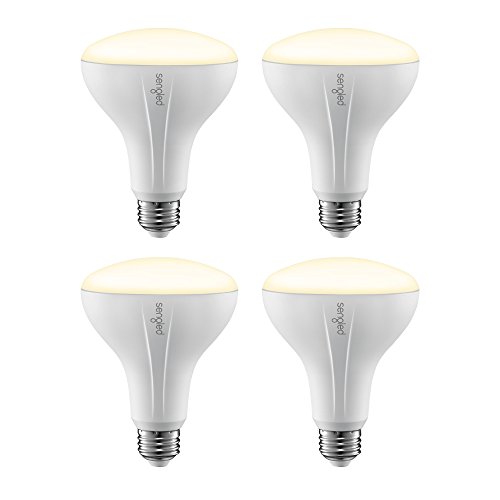
- LFR Score7.6
LFR Score is a ranking system developed by lightfansreviews.com. LFR Score has no relationship or impact from any manufacturers or sales agent websites. Learn more
- BrandSengled
Last update on 2026-10-02 / Affiliate links / Images, Product Titles, and Product Highlights from Amazon Product Advertising API
FAQs
How fast should I flip the switch to enter pairing mode?
Flip the switch at an even pace of about one full cycle per second. Say "off, on" aloud to match the steady rhythm of a clock second hand. Moving too fast prevents the bulb from fully powering down, while moving too slowly cancels the reset sequence.
Why will my Sengled bulb not flash even after flipping the switch five times?
The most common issue is a wall dimmer switch, which leaks residual current and stops the bulb from reading clean power breaks. Irregular flipping speed is another frequent cause. Moving the bulb to a simple lamp with a basic mechanical toggle switch usually solves the problem.
Do I need to delete the bulb from my app before resetting it?
You do not need to delete it first, but clearing the old entry in your app prevents duplicate listings. The five-flip physical reset completely wipes the bulb's internal memory regardless of whether it is still listed on your phone.
Can I put multiple Sengled bulbs into pairing mode at the same time on one switch?
Yes, all bulbs controlled by that single switch receive the same power cuts and can reset together. However, slight variations in internal electronics can cause one bulb to catch the rhythm while another misses it. If one fails, reset it individually in a separate single-socket lamp.

Best Bulb For Exposed Light 2026 That Shines Bright

Best Industrial Light Bulb Reviews: Top Picks for 2026
Best Outdoor Light Bulb Reviews: Top-Rated Picks for 2026
Best LED Reading Light Bulb Reviews - Top Picks for 2026

Best Vintage Light Bulb 2026 With Style And Glow
Best Yellow Fog Light Bulb 2026 For Clearer Night Drives

Best Z Wave Light Bulb 2026 Top Picks For Smart Control
Best Light Bulb For Vanity Mirror 2026 Brightness Boost