How to Reset and Reconnect a Wemo Light Switch

Look directly underneath the main wall switch paddle for two tiny buttons labeled Restart and Reset. Pressing the restart button reboots the switch without losing your settings, which clears away minor connection glitches right away. Holding the reset button restores factory settings by wiping out old Wi-Fi details so the unit can start fresh.
Choosing the right fix depends on your specific issue and the switch model in your wall. Standard switches, dimmer models, and newer units place these small buttons in slightly different spots beneath the faceplate. A switch that randomly froze only needs a gentle reboot, while a new home network setup requires erasing saved data completely. In rare cases where the hardware ignores every button press, shutting off power at your breaker box comes first. Finding the right button takes just a few seconds once you know where to look.
Should You Restart or Factory Reset Your Switch?
Before you press any buttons, you need to decide whether your switch needs a simple restart or a full factory reset. These two actions perform completely different tasks. Choosing the wrong one can mean spending twenty minutes re-entering network passwords and rebuilding your lighting schedules when a thirty-second reboot was all you needed.
A restart means turning the internal computer off and on without losing settings. This simple reboot clears the internal memory of the switch while keeping your Wi-Fi name, security password, custom device names, and daily timers completely safe. Use a restart if your switch suddenly shows up as disconnected in your phone app, freezes during a routine schedule, or stops responding to physical taps on the wall paddle.
A factory reset means erasing all saved network settings back to out-of-the-box state. This wipes everything stored on the switch, including its Wi-Fi credentials, automation rules, and links to voice assistants. You only want to perform a factory reset when you change your home router, update your Wi-Fi network password, move the switch into a different room with a different network, or plan to give the unit to someone else.
Think of it just like your home computer or television streaming box. If the device freezes up on a Tuesday evening, you do not immediately wipe the hard drive. You give it a quick power cycle first. Only turn to a factory wipe when the network fundamentals change or when multiple reboots fail to bring the device back to life.
Where Are the Hidden Buttons on Your Switch?
If you look at the smooth face of a Wemo smart wall switch, you will not see any obvious control buttons. Belkin designed these wall switches with clean, modern faceplates, concealing the maintenance controls along the bottom edge directly under the large rocker paddle.
To find them, walk up to the wall switch and crouch down so you are looking up at the bottom rim of the rectangular paddle. In the small gap between the moving paddle and the outer wall trim plate, you will see two tiny, recessed buttons. On most single-pole and dimmer models, these buttons are labeled with small raised letters or icons.
The button on the left is typically labeled "Restart" (sometimes marked with a small circular reboot arrow). The button on the right is labeled "Reset" (sometimes marked with the word "Restore"). On newer smart switches with Thread, these buttons may sit flush against the bottom plastic edge as tiny pinhole spots or small micro-switches side by side.
Never take a screwdriver to the wall plate or try to pry the switch away from your electrical box to find these buttons. They are fully accessible while the switch remains safely installed on your wall. Use your fingernail, a wooden toothpick, or the flat tip of an unbent paperclip to press them. Avoid metal sewing needles or sharp safety pins, which can puncture the plastic button caps or damage the internal electronics.
How Do You Perform a Quick Switch Reboot?
A quick reboot refreshes the switch hardware and forces it to request a clean connection from your wireless router. This simple fix solves the majority of temporary app freezes and dropped connections without erasing any of your preferences.
- Locate the Restart button. Look beneath the bottom edge of the rocker paddle and find the button on the left side, labeled Restart.
- Press and release the button firmly. Use your fingernail or a paperclip tip to press the Restart button inward once. You will feel a soft, distinct mechanical click beneath your finger. Do not hold it down; simply press and release.
- Watch the status indicator light. The status indicator (the small light on the switch that shows Wi-Fi status) will immediately go dark as the switch cuts power to its internal board.
- Wait for the startup sequence. Within a few seconds, the small indicator light will illuminate and begin blinking green or amber. The internal processor is booting up, loading your stored network profile, and searching for your local router.
- Confirm the connection. After sixty to ninety seconds, the blinking light should change to solid white (or solid green on older switch models) before turning off during normal operation. Open your mobile app to confirm that the switch now shows as active and responds to controls.
If your switch ever becomes so unresponsive that pressing the Restart button does not turn off the indicator light, your switch hardware may be completely frozen. If that happens, go to your home electrical panel and shut off the circuit breaker controlling that room for thirty seconds. Flip the breaker back on to force a hard electrical restart at the source.
How Do You Restore Factory Settings on the Switch?
When you replace your home internet router, change your network security key, or switch internet providers, your smart switch cannot connect using its old saved profile. In this situation, performing a complete factory wipe erases the outdated network credentials so you can link the switch to your new network from scratch.
- Locate the Reset button. Look under the bottom edge of the wall switch paddle and find the button on the right side, marked Reset or Restore.
- Press and hold the button down. Using a paperclip tip or your fingernail, push the Reset button inward and keep constant pressure on it. Do not release the button when you feel the initial click.
- Count to twelve while watching the light. Continue holding the button down for roughly ten to fifteen seconds. Keep your eyes on the small status indicator light right above or below the rocker paddle.
- Wait for the alternating light pattern. The light will blink amber, but keep holding until you see the light flash rapidly between amber and white (or amber and green on older hardware). This dual-color blinking tells you that the switch has recognized the factory reset command.
- Release the button. Let go of the Reset button as soon as you see that alternating flash. The switch will take about ninety seconds to clear its memory, reboot its internal system, and restore the factory operating firmware.
- Check for pairing mode. Once the process finishes, the indicator light will pulse slowly in alternating amber and white. This slow pulse means the switch has entered setup mode and is waiting for your phone to pair it with your home network.
If you own an older first-generation Wemo light switch that does not have two separate micro-buttons along the bottom rim, you can factory reset it using the main paddle. Hold down the top half of the large rocker paddle while pushing the small restart button underneath. Hold the paddle for fifteen seconds until the status indicator blinks amber, then release it to trigger the factory wipe.
What Do the Blinking Indicator Light Colors Mean?
The small status indicator light on your switch communicates exactly what the device is doing behind the wall. Understanding these light patterns saves you from guessing whether your switch is working properly or stuck in an error state.
- Solid White or Solid Green: The switch is powered on, successfully connected to your local Wi-Fi router, and communicating properly with the cloud server. After a short period, this light normally shuts off so it does not distract you in a dark room.
- Blinking Amber and White (Slow Pulse): The switch is in setup mode. It has erased its old memory and is broadcasting its temporary setup signal, waiting for your phone or tablet to connect and send new network credentials.
- Blinking Amber: The switch is disconnected from your home network. It is powered up and searching for your router, but cannot make a stable connection. This usually points to an incorrect Wi-Fi password, a router that is currently offline, or a wireless signal that is too weak to reach through your wall box.
- Rapidly Flashing Amber: The switch encountered a temporary network timeout or an interrupted reset. This often happens if you let go of the Reset button too early, or if the switch failed to receive an IP address from your router during startup.
- No Light at All: Under regular conditions, a dark light is normal when the switch is idle. But if the switch does not react when you press the paddle, and the indicator light does not turn on at all, the unit is not receiving electrical power. Check your main electrical panel for a tripped breaker.
What If the Switch Refuses to Reconnect?
Sometimes you complete a full factory wipe, but the switch still refuses to complete the setup process in your app, or gets stuck blinking amber. Smart switches depend on stable local wireless conditions, and a few common home network settings frequently block them from completing setup.
First, verify your home Wi-Fi frequency band. Most Wemo light switches rely strictly on a 2.4 GHz wireless frequency. Modern home mesh routers often combine both the 2.4 GHz and 5 GHz frequencies under a single unified Wi-Fi name. During setup, your smartphone may sit on the faster 5 GHz band, which prevents it from talking directly to the switch.
To resolve this frequency conflict, open your router management app on your phone. Temporarily pause the 5 GHz band for fifteen minutes, or create a dedicated 2.4 GHz guest network specifically for your smart home accessories. Once your phone connects directly to that 2.4 GHz channel, run the switch setup again.
Second, clear out old software entries on your phone. If you previously named the device "Living Room Light" in your app, your phone may hold onto cached network settings that conflict with the newly wiped switch. Delete the old switch entry from your Wemo app, Apple Home, or Alexa dashboard before trying to add it back.
This is especially helpful if your home relies on voice control routines across mixed accent lighting, like running scheduled schedules alongside Alexa-enabled LED strip lights. Removing ghost devices prevents conflicting voice commands and ensures your automations trigger the correct switch every time.
Third, inspect the physical surroundings of your wall switch. Metal electrical boxes significantly dampen Wi-Fi signals compared to plastic boxes. If your switch sits inside a deep metal box behind thick drywall, brick, or tile, the internal Wi-Fi antenna may struggle to maintain contact with a distant router. Moving your wireless router closer or adding a mesh node in the hallway can instantly cure chronic amber blinking.
Finally, know when to stop and call a professional. If your wall switch ever feels unusually hot to the touch, produces a persistent electrical buzzing sound, emits a burning plastic odor, or immediately trips the circuit breaker whenever you flip it on, stop using it immediately. Shut off the circuit breaker at the main electrical panel right away, leave the switch powered off, and contact a licensed electrician to inspect your wiring.
FAQs
Will resetting my switch delete my saved lighting schedules?
A simple restart will not affect your rules, schedules, or device names because that information stays stored in the internal memory. Performing a full factory reset, however, completely wipes the memory clean. You will need to link the switch back to your home app and recreate your automations and timers from scratch.
Why does my switch keep flashing amber after resetting?
A flashing amber light means the switch cannot reach or authenticate with your wireless router. This usually happens when the switch is placed outside your router effective range, or when the switch tries to connect to an incompatible 5 GHz frequency band. Make sure your router broadcasts a stable 2.4 GHz signal and that your network password was typed correctly during setup.
Can you reset the switch without using the phone app?
Yes, you can completely restore factory settings directly from the wall switch using the physical buttons hidden under the paddle. Pressing and holding the small Reset button beneath the rocker paddle for ten to fifteen seconds triggers a full wipe without needing your phone. This physical method is the best option when the switch drops off your app entirely.
Should you turn off the circuit breaker to reset it?
You do not need to touch your electrical panel for normal maintenance because the hidden buttons under the paddle handle both restarts and full factory wipes. The only time you should shut off the circuit breaker at the main electrical panel is when the internal hardware freezes completely and ignores the physical buttons, or if you suspect an electrical problem behind the wall.


Best Lighting For Makeup 2026 Bright Ideas For Flawless Looks

Best Wall Sconces For Staircase 2026 Brighten Your Home
Best Lighting For Computer Desk 2026 For Focused Work

Best Boat Black Lights 2026 For Nighttime Adventure

Best Black 30 Inch Light Bar Reviews – Top Picks of 2026

Best Black Light For Aquarium 2026 For Vibrant Glow

Best Black Light for Authenticating Glass 2026 Top Picks
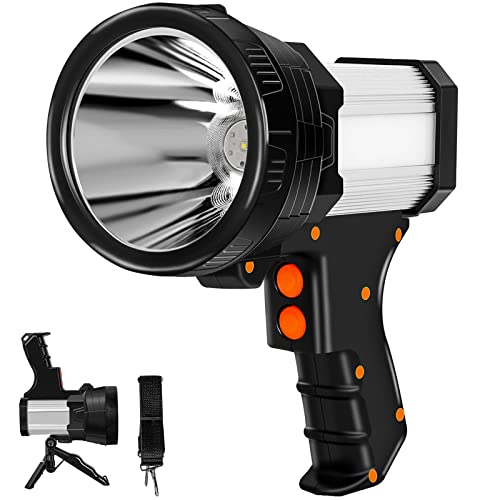
Best Waterproof Spotlight 2026 That Outshines Expectations